Posts

How to upgrade Gradle for Android Studio

Image
If you upgrade your Android Studio, probably you must upgrade your Gradle if you see this error: Error:Gradle version 2.10 is required. Current version is 2.4. If using the gradle wrapper, try editing the distributionUrl in ~/AndroidStudioProjects/Android-StickerView/gradle/wrapper/gradle-wrapper.properties to gradle-2.10-all.zip Fix Gradle wrapper and re-import project To fix it, you can download the last version from  https://services.gradle.org/distributions In my case, I downloaded version 2.13 Once you download your zip, you need to decompress it, and later go to file ->settings ->gradle and choose Use local gradle distribution. In Gradle home choose the folder that you generated when .zip decompressed, like follows:

Run Android Studio 2.2 Preview 1 in Ubuntu

Image
If you want to run the last version of Android Studio, you need download it from: wget  https://dl.google.com/dl/android/studio/ide-zips/2.2.0.0/android-studio-ide-145.2878421-linux.zip unzip android-studio-ide-145.2878421-linux.zip cd android-studio/bin/ ./studio.sh The following error will appear: ./studio.sh: 137: ./studio.sh: declare: not found ./studio.sh: 141: ./studio.sh: Syntax error: "(" unexpected (expecting "fi") To fix it, you need replace the first line of studio.sh by #!/bin/bash Now you can create and icon in your Desktop to execute this application. Create a file calls Studio.desktop in your desktop and put the following lines: [Desktop Entry] Type=Application Icon=/home/user/android-studio/bin/studio.png Name=AndroidStudio Comment="Start AndroidStudio" Exec=/home/user/android-studio/bin/studio.sh Terminal=false Categories=Controller; GenericName[en_US]= Name[en_US]=AndroidStudio Enjoy it!

Install ASDM 6.4(9) for an ASA 5520 in GNS3

Image
In my last post , I use a TAP interface to connect a VBox network to my pc. Now, I going to show you how to install Cisco Adaptive Security Device Manager (ASDM) in an ASA firewall. First, you can download ASA iOS from  http://www.mediafire.com/download/c228c2sjdyrkwf3/ASA_842.7z Extract the files and add a new Qemu image in GNS3. Configure as follows: Connect ASA to a cloud with TAP interface to be in the same network. Maybe you can get this error at the moment to play your project: Execution log: Failed to initialize module: /usr/lib/x86_64-linux-gnu/qemu/block-curl.so Note: only modules from the same build can be loaded. Failed to initialize module: /usr/lib/x86_64-linux-gnu/qemu/block-rbd.so Note: only modules from the same build can be loaded. qemu-system-x86_64: -netdev tap,id=gns3-0,ifname=tap0,script=no,downscript=no: could not configure /dev/net/tun (tap0): Operation not permitted qemu-system-x86_64: -netdev tap,id=gns3-0,ifname=tap0,scr...

Configure a Vbox network for GNS3 with Internet through a cloud with a TAP interface

Image
Today we going to configure a virtual network within GNS3. We can download older GNS3 versiones from sourceforge or the most recent from  gns3.com. We need to add the repositories to apt and after install gns3: sudo add-apt-repository ppa:gns3/ppa sudo apt-get update sudo apt-get install gns3-gui To have a connection to access Internet through our physical interface, we create a TAP interface (virtual bridge): sudo apt-get install uml-utilities modprobe tun tunctl ifconfig tap0 10.0.0.1 netmask 255.255.255.0 up On the last line, you configure the ip, that will be the gateway for your virtual topology. Now, as we need forward the packets, between the virtual network and your physical router, you must enable the forwarding option: sudo iptables -I INPUT -j ACCEPT -i tap0 sudo iptables -I OUTPUT -j ACCEPT -o tap0 sudo sysctl -w net.ipv4.ip_forward=1 Now, you need an appliance or a any host image to create our virtual network. You can use a minimal Ubuntu version ...

Error in Latex: File ended while scanning use of \url. \bibliography{

If you try load urls in your bibliography with especial characters like Ʊ or vowels with accents, for example, Jabref automatically translate it to url encode syntax. The problem is when latex try to read it, doesn't know how interpret this url, for this reason you need to use the package url. To solve this follow error (or similar) you must call  \usepackage{url} File ended while scanning use of \url. \bibliography{name.bib} \begin{thebibliography} on input line 2 ended by \end{document}. \end{document}

Matlab crashes after startup on Linux

Image
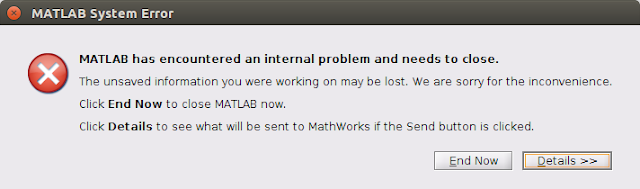
After Matlab installation on Ubuntu 15.10,  you may have a problem running Matlab at startup: One option is running without desktop version throught CLI with matlab -nodesktop The best solution is fix libstc++ because Ubuntu include version 20 of libstdc++.so.6, which is newer than the version shipped with MATLAB. When MATLAB loads older version first, Ubuntu reaches an incompatibility that causes MATLAB to crash. To fix it, you need to remove de libstc++.so.6, or backup it for anything: cd /usr/local/MATLAB/R2016a/sys/os/glnxa64 sudo mv libstdc++.so.6 libstdc++.so.6.bak Now, retry to load matlab with desktop interface:

Hello World for Contiki on XM1000

Image
In my last post, I explain how to run a  Hello World for Contiki on IRIS-XM2110 Mote. Now, I explain how to do on a MTM-XM1000. First, as in the previous case, we need check that xm1000 is within the targets. For include it in contiki, we need download it from the developer site and include in contiki folder. wget  http://www.advanticsys.com/shop/documents/1429538511_contiki-xm1000-v2015-04-15.rar unrar x 1429538511_contiki-xm1000-v2015-04-15.rar cd contiki-xm1000-v2015-04-15/contiki/ Now copy the content of tools/ and platform/ in your Contiki directory cp -R * $YOUR_CONTIKI_PATH If we compile the file hello-world.c, remember that now you must do it with TARGET=xm1000 make TARGET=xm1000 savetarget make hello-world sudo make hello-world.upload This is a typically error: ../../core/dev/sht11.c: In function ‘sht11_init’: ../../core/dev/sht11.c:218:4: warning: #warning SHT11: DISABLING I2C BUS [-Wcpp] ../../core/dev/sht11.c:221:5: error: ‘SHT11_PxR...