Posts

Showing posts with the label virtualbox

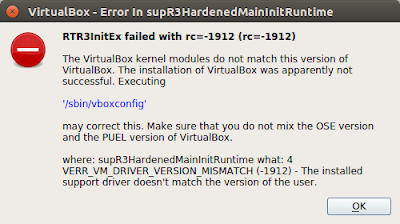
Fix VirtualBox - RTR3InitEx failed with rc=-1912 (rc=-1912)
Image
If you try to install a new VirtualBox version, maybe you would have this issue: In my case, I had VirtualBox 5.0 and I also installed version 5.2 Now, the only version that exists is PUEL (Oracle version). For that reason, you need to remove choose between OSE (older version) or PUEL (new version). In my case I choose OSE. To fix it, just run in your terminal these commands: dpkg -P virtualbox-dkms sudo apt-get install virtualbox-dkms virtualbox-guest-additions-iso Enjoy!

How to fix VirtualBox error when you try to import an ova file

If you download an ova file to import it to Virtualbox, maybe you will see the following message: Failed to import appliance filename.ova. Seeking within the archive failed (VERR_TAR_UNEXPECTED_EOS). Result Code: VBOX_E_IPRT_ERROR (0x80BB0005) Component: ApplianceWrap Interface: IAppliance {8398f026-4add-4474-5bc3-2f9f2140b23e} If you do it the same throught VBoxManage you will get: # VBoxManage import filename.ova  Progress state: VBOX_E_IPRT_ERROR VBoxManage: error: Appliance import failed VBoxManage: error: Seeking within the archive failed (VERR_TAR_UNEXPECTED_EOS) VBoxManage: error: Details: code VBOX_E_IPRT_ERROR (0x80bb0005), component ApplianceWrap, interface IAppliance VBoxManage: error: Context: "RTEXITCODE handleImportAppliance(HandlerArg*)" at line 877 of file VBoxManageAppliance.cpp To fix it, you must extract ova content and compress again as follows: tar xvf filename.ova tar cvf newfilename.ova filename.ovf filename.vmdk Also, you can i...

Configure a Vbox network for GNS3 with Internet through a cloud with a TAP interface

Image
Today we going to configure a virtual network within GNS3. We can download older GNS3 versiones from sourceforge or the most recent from  gns3.com. We need to add the repositories to apt and after install gns3: sudo add-apt-repository ppa:gns3/ppa sudo apt-get update sudo apt-get install gns3-gui To have a connection to access Internet through our physical interface, we create a TAP interface (virtual bridge): sudo apt-get install uml-utilities modprobe tun tunctl ifconfig tap0 10.0.0.1 netmask 255.255.255.0 up On the last line, you configure the ip, that will be the gateway for your virtual topology. Now, as we need forward the packets, between the virtual network and your physical router, you must enable the forwarding option: sudo iptables -I INPUT -j ACCEPT -i tap0 sudo iptables -I OUTPUT -j ACCEPT -o tap0 sudo sysctl -w net.ipv4.ip_forward=1 Now, you need an appliance or a any host image to create our virtual network. You can use a minimal Ubuntu version ...

Remove "vboxclient the virtualbox kernel service is not running. exiting" popup

If you want to remove this popup at the startup, you can modify  /etc/X11/Xsession.d/98vboxadd-xclient and replace the message in notify-send by an echo. The otherwise is removing the file. sudo rm /etc/X11/Xsession.d/98vboxadd-xclient